Blog

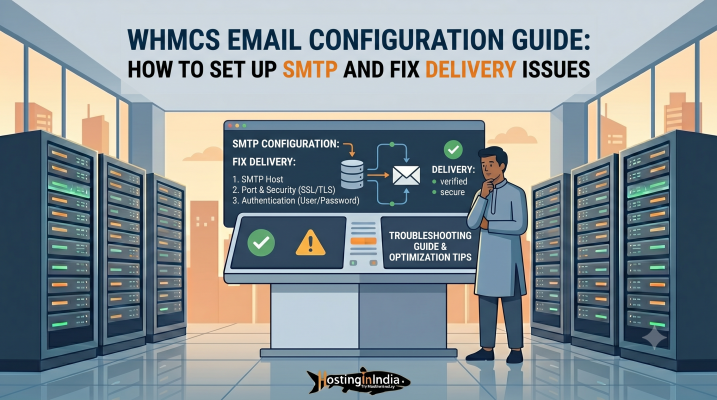
  • WHMCS Email Configuration Guide: How to Set Up SMTP and Fix Delivery Issues

    WHMCS Email Configuration Guide: How to Set Up SMTP and Fix Delivery Issues

    Unfortunately, email delivery issues are incredibly common in WHMCS. If your system emails end up in your customers’ spam folders—or worse, don’t get delivered at all—it can damage your credibility and cause immediate support bottlenecks.

    In this comprehensive guide, we will walk you through setting up a professional SMTP configuration in WHMCS, ensuring your messages hit the inbox every single time.

    Why WHMCS Email Setup Matters

    By default, WHMCS is a powerhouse of automation. It handles:

    • Invoice generation and payment receipts.
    • Automated server provisioning details.
    • Password resets and account security alerts.
    • Support ticket updates.

    If your customers miss an invoice notification, your cash flow suffers. If they don’t receive their welcome email, they can’t access their services, resulting in frustrated clients flooding your support desk. A reliable email setup isn’t a luxury; it’s a core operational requirement.

    SMTP vs. PHP Mail: Why Default Settings Fail

    When you first install WHMCS, it often defaults to using the built-in PHP Mail script (mail()) from your server infrastructure. While convenient, relying on PHP mail is a major risk for growing businesses:

    • No Authentication: PHP mail sends messages directly from the server without robust sender verification. Spammers love this, which means major providers like Gmail, Outlook, and Yahoo look at PHP mail with extreme suspicion.
    • Shared IP Reputation: If you are running on a shared server and a neighbouring site sends spam, the server’s primary IP gets blacklisted. Consequently, your legitimate transactional invoices get blocked too.
    • High Spam Rates: PHP mail routinely lands straight in the spam or promo folder.

    SMTP (Simple Mail Transfer Protocol), on the other hand, routes your emails through a dedicated, authenticated mail server. It requires a username and password, proving to receiving mail networks that the email is genuinely authorized by your domain name.

    Best SMTP Providers for WHMCS

    To get the best deliverability, you should pair WHMCS with a professional email provider. Excellent options include:

    • Google Workspace / Gmail: Highly reliable, great if your business already operates on Google’s ecosystem.
    • Zoho Mail: An affordable, feature-rich alternative widely popular among Indian SMBs.
    • Titan Mail: Optimized explicitly for business storage and seamless domain integration.
    • Premium Dedicated Relay Services: Mailgun, SendGrid, or Amazon SES (ideal for high-volume bulk invoicing).

    Step-by-Step: Configure SMTP in WHMCS

    Ready to make the switch? Follow these steps to configure your custom mail settings inside your dashboard:

    1. Log in to your WHMCS Admin Area.
    2. Navigate to Configuration (the wrench icon) >> System Settings >> General Settings.
    3. Click on the Mail tab.
    4. Locate the Mail Type dropdown menu and change it from PHP Mail to SMTP.
    5. Fill in your specific mail server details (obtained from your email provider):
      • SMTP Host: (e.g., mail.yourdomain.com or provider host address).
      • SMTP Port: Use 465 for SSL connections or 587 for TLS connections.
      • SMTP SSL Type: Select SSL or TLS based on your port selection.
      • SMTP Username: Enter the full email address you wish to send from (e.g., billing@yourdomain.com).
      • SMTP Password: Enter the corresponding password (or an App Password if using 2FA).
    6. Click Save Changes at the bottom of the page.

    Specific Provider Setups

    1. Gmail / Google Workspace SMTP Setup

    Because Google enforces strict security policies, using your standard account password often results in an authentication failure.

    • SMTP Host: smtp.gmail.com
    • SMTP Port: 465 (with SSL) or 587 (with TLS)
    • Crucial Step: You must enable Two-Factor Authentication (2FA) inside your Google Account security panel. Once enabled, generate an App Password specifically for WHMCS, and paste that 16-character code into your WHMCS SMTP Password field instead of your regular password.

    2. Zoho SMTP Setup

    Zoho is highly secure and works perfectly with automated invoice layouts.

    • SMTP Host: smtp.zoho.in (if your account is registered in India) or smtp.zoho.com (global).
    • SMTP Port: 465
    • SMTP SSL Type: SSL
    • Note: Ensure that the “From” address configured in your WHMCS General Settings exactly matches your authorized Zoho account username.

    Troubleshooting Common Email Delivery Issues

    If you save your settings and encounter errors, look into these common culprits:

    • Authentication Errors: Double-check your username and password string. If using Gmail or Zoho with 2FA active, a standard login password will fail; you must use an App Password.
    • Port Blocks: Many cloud VPS providers block outbound traffic on port 25 by default to prevent spam. Ensure your configuration utilizes secure ports like 465 or 587.
    • Firewall Restrictions: Ensure your hosting server’s firewall allows outbound requests to your remote mail server IPs.

    Advanced Strategies to Improve WHMCS Email Deliverability

    Authentication doesn’t end at the WHMCS dashboard. To make sure your domain has a pristine reputation in the eyes of Google and Microsoft, you must configure your domain’s DNS zone correctly.

    • SPF (Sender Policy Framework): A text record added to your DNS settings that explicitly lists which mail servers are permitted to send emails on behalf of your domain.
    • DKIM (DomainKeys Identified Mail): Adds a cryptographic digital signature to your outgoing mail headers, proving the message wasn’t altered in transit.
    • DMARC (Domain-based Message Authentication, Reporting, and Conformance): A policy rule telling receiving servers exactly what to do (e.g., quarantine or reject) if an email fails your SPF or DKIM checks.

    Critical Security Tips for Your Mail Infrastructure

    • Never Use Root Email Accounts: Do not use primary administrative or personal email profiles for automated software output. Create separate routing groups like no-reply@, billing@, or support@.
    • Enforce Strong Password Policies: Ensure your SMTP mailbox has a complex, randomized password script to avoid brute-force cracking attempts.
    • Regularly Audit Log History: Check your WHMCS Activity Log (Billing >> Logs or System >> Activity Log) weekly to verify that automated cron sequences aren’t tripping error flags.

    Conclusion

    Transitioning your WHMCS system away from unreliable PHP scripts to an authenticated SMTP engine keeps your hosting platform running efficiently. By protecting your communication channels, you protect your revenue streams.

    At HostingInIndia, our premium Linux VPS and Reseller architectures give you full control over your execution environment. If you need any assistance getting your server firewalls aligned with your cloud mail networks, reach out to our technical support team—we are here to help you breathe hosting!

  • How to Configure WHMCS with cPanel Automatically

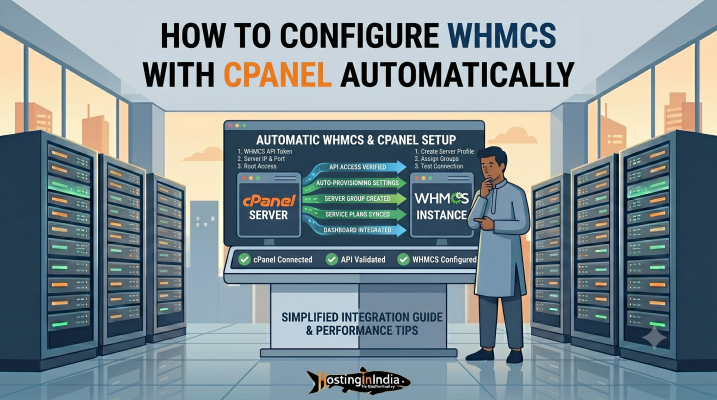
    How to Configure WHMCS with cPanel Automatically

    WHMCS allows hosting providers and resellers to automate account creation, billing, suspension, renewals, and hosting management directly with cPanel and WHM.

    In this complete HostingInIndia tutorial, we will show you how to configure WHMCS with cPanel automatically step-by-step without missing any important settings.

    What is WHMCS Automation?

    WHMCS (Web Host Manager Complete Solution) is a powerful hosting billing and automation platform used by web hosting companies and reseller hosting businesses.

    It automates multiple tasks including:

    • Hosting account creation
    • Invoice generation
    • Domain registration
    • Service suspension
    • Account termination
    • Support ticket management
    • Payment processing

    When integrated with cPanel/WHM, WHMCS can automatically create hosting accounts immediately after successful payment.

    Benefits of WHMCS + cPanel Integration

    Integrating WHMCS with cPanel provides multiple benefits for hosting businesses.

    Key Advantages Include:

    ✅ Automatic hosting account creation
    ✅ Automated billing and invoicing
    ✅ Instant account activation after payment
    ✅ Automatic suspension for overdue invoices
    ✅ Centralized client management
    ✅ Reduced manual work
    ✅ Better customer experience
    ✅ Scalable reseller hosting operations

    For reseller hosting providers, this integration helps save time and improve efficiency significantly.

    Requirements Before Setup

    Before configuring WHMCS with cPanel, make sure you have the following:

    Required Items:

    • WHMCS installed and activated
    • cPanel/WHM server access
    • Root access or reseller privileges
    • WHM hostname or server IP
    • Server SSH access (optional)
    • SSL certificate installed
    • Valid cPanel hosting packages created

    Step 1: Generate cPanel API Credentials

    WHMCS communicates with your cPanel server using API credentials or access hash authentication.

    To generate the required credentials, follow these steps carefully.

    Login to WHM

    Access your WHM (Web Host Manager) dashboard.

    Usually accessible via:

    https://yourserverip:2087

    or

    https://hostname:2087

    Navigate to Development Section

    Inside WHM, go to:

    Development >> Manage API Tokens

    Create API Token

    Now click on:

    Generate Token

    Enter:

    • Token Name
    • Permissions (Full privileges recommended)

    Click on:

    Save

    Copy API Token

    After generating the token, copy the API token immediately and save it securely.

    You will need this token while configuring the server inside WHMCS.

    Step 2: Login to WHMCS Admin Area

    Now login to your WHMCS Admin Dashboard.

    Usually accessible via:

    https://yourdomain.com/admin

    Step 3: Add cPanel Server in WHMCS

    Inside WHMCS Admin Area, navigate to:

    System Settings >> Servers

    Click on:

    Add New Server

    Step 4: Enter cPanel Server Details

    Now fill in the required server details carefully.

    Basic Server Information

    Field

    Description

    Name

    Your Server Name

    Hostname

    Your cPanel Server Hostname

    IP Address

    Server IP Address

    Type

    cPanel

    Username

    root or reseller username

    Password/API Token

    Enter generated API Token

    Server Access Configuration

    Select:

    👉 Secure SSL Connection

    Recommended Port:

    👉 2087

    Test Server Connection

    After entering all details, click on:

    Test Connection

    If everything is configured correctly, WHMCS will display a successful connection message.

    Now click:

    Save Changes

    Step 5: Create Server Group

    Server groups help distribute hosting accounts automatically across servers.

    Navigate to:

    System Settings >> Servers >> Create New Group

    Configure Server Group

    Enter:

    • Group Name
    • Select Added Server
    • Choose Fill Type

    Recommended Fill Type:

    👉 Add to the least full server

    👉 Save the server group.

    Step 6: Create Hosting Packages in WHM

    Before creating products in WHMCS, you must create hosting packages inside WHM.

    Navigate to Packages Section in WHM

    Go to:

    👉 Packages >> Add a Package

    Create Hosting Plan

    Enter:

    • Package Name
    • Disk Space
    • Bandwidth
    • Email Limits
    • Database Limits
    • FTP Limits

    Click:

    👉 Add

    Repeat this process for all hosting plans.

    Step 7: Create Hosting Products in WHMCS

    Now configure hosting products inside WHMCS.

    Navigate to:

    👉 System Settings >> Products/Services

    Create Product Group

    Click:

    👉 Create a New Group

    Example:

    • Shared Hosting
    • Reseller Hosting
    • VPS Hosting

    Save changes.

    Create New Product

    Now click:

    👉 Create a New Product

    Product Configuration

    Select:

    • Product Type: Hosting Account
    • Product Group
    • Product Name

    Click:

    👉 Continue

    Step 8: Configure Module Settings

    Inside the product settings, open:

    👉 Module Settings

    Select cPanel Module

    Choose:

    👉 cPanel

    Configure Automation Settings

    Now select:

    • Server Group
    • WHM Package Name
    • Username format
    • Password generation settings

    Enable Automatic Provisioning

    Under automation settings select:

    Automatically setup the product as soon as the first payment is received

    This enables instant account creation after successful payment.

    Save changes.

    Step 9: Configure Product Pricing

    Navigate to:

    Pricing Tab

    Set:

    • Monthly pricing
    • Quarterly pricing
    • Annual pricing

    👉 Enable payment gateways if required.

    👉 Save settings.

    Step 10: Setup WHMCS Cron Job

    WHMCS cron jobs are required for automation tasks.

    These tasks include:

    • Invoice generation
    • Service suspension
    • Renewal reminders
    • Account termination

    Locate Cron Command

    Inside WHMCS Admin Area navigate to:

    👉 Utilities >> System >> System Health Status

    Copy the cron command.

    Add Cron Job in cPanel

    Login to cPanel and navigate to:

    👉 Advanced >> Cron Jobs

    Paste the cron command and save it.

    Step 11: Test Automatic Account Provisioning

    Now test the automation process completely.

    Place a Test Order

    1. Visit your WHMCS order page
    2. Purchase the hosting product
    3. Complete payment

    Verify Automatic Account Creation

    After successful payment:

    ✅ WHMCS should automatically create the cPanel account
    ✅ Login credentials should be emailed automatically
    ✅ Hosting service should appear active inside WHMCS

    Common WHMCS + cPanel Errors & Fixes

    Sometimes users may encounter setup issues.

    API Authentication Failed

    Cause:

    Incorrect API token or username.

    Solution:

    Regenerate API token and verify WHM username.

    Account Creation Failed

    Cause:

    Package name mismatch.

    Solution:

    Ensure WHM package name matches exactly inside WHMCS module settings.

    SSL Connection Error

    Cause:

    Invalid SSL certificate or incorrect hostname.

    Solution:

    Use valid hostname with SSL enabled.

    Cron Job Not Running

    Cause:

    Incorrect cron command or permissions issue.

    Solution:

    Verify cron syntax and PHP path.

    Why Choose HostingInIndia Reseller Hosting?

    HostingInIndia provides powerful reseller hosting solutions optimized for WHMCS and cPanel automation.

    Our Reseller Hosting Features Include:

    ✅ Free WHMCS License
    ✅ cPanel/WHM Access
    ✅ SSD/NVMe Storage
    ✅ White-label Hosting
    ✅ Free SSL Certificates
    ✅ High Uptime Guarantee
    ✅ Automatic Backups
    ✅ 24/7 Technical Support

    Whether you are starting a hosting business or managing multiple client websites, HostingInIndia reseller hosting provides the performance and automation needed to scale efficiently.

    Final Thoughts

    Configuring WHMCS with cPanel automation can significantly simplify hosting account management.

    The complete setup process includes:

    1. Generating cPanel API credentials
    2. Adding the server inside WHMCS
    3. Creating server groups
    4. Configuring hosting packages
    5. Enabling automatic provisioning
    6. Setting up cron jobs
    7. Testing automation properly

    Once configured correctly, WHMCS and cPanel together can automate almost every aspect of your hosting business.

    If you need assistance with WHMCS setup, reseller hosting, or cPanel hosting services, feel free to contact the HostingInIndia support team.

  • How to Setup WHMCS Cron Jobs Correctly

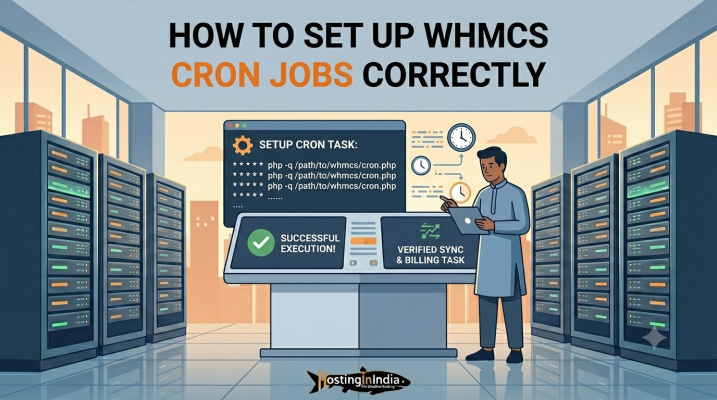
    How to Setup WHMCS Cron Jobs Correctly

    Because WHMCS stores sensitive customer information, payment details, hosting account credentials, and billing records, it is often targeted by cybercriminals. A compromised WHMCS installation can lead to financial losses, data breaches, service disruptions, and damage to your company’s reputation.

    In this complete 2026 security guide, HostingInIndia will walk you through the essential steps required to secure your WHMCS installation and protect your hosting business from modern security threats.

    Why WHMCS Security Matters

    WHMCS acts as the central control panel for many hosting businesses. It handles critical functions such as:

    • Customer account management
    • Hosting account provisioning
    • Domain registrations
    • Invoice generation
    • Payment processing
    • Support ticket management
    • Server automation

    If attackers gain access to your WHMCS system, they could potentially:

    • Steal customer data
    • Access server credentials
    • Manipulate invoices
    • Hijack hosting accounts
    • Install malicious code
    • Damage your brand reputation

    Securing WHMCS is not optional—it is a necessity for every hosting business.

    Why Cron Jobs Are Important

    Cron jobs are considered the backbone of WHMCS automation.

    If your cron job stops working, many important business operations can be affected.


    Benefits of WHMCS Cron Jobs

    Automated Invoice Generation

    WHMCS automatically creates invoices before service due dates.

    Automated Payment Reminders

    Customers receive reminders before invoices become overdue.

    Automatic Account Suspension

    Unpaid hosting accounts can be suspended automatically according to your billing policy.

    Automatic Account Reactivation

    Once payment is received, suspended services can be reactivated automatically.

    Domain Renewal Automation

    WHMCS automatically handles domain renewal notices and processing.

    Reduced Administrative Work

    Cron automation eliminates repetitive manual tasks and allows hosting providers to focus on growing their business.

    Improved Customer Experience

    Customers receive timely notifications and faster service provisioning.


    Locate the Cron Command in WHMCS

    Before configuring a cron job, you need to obtain the correct cron command from WHMCS.

    Modern WHMCS versions provide a recommended cron command within the administration area.


    Step 1: Login to WHMCS Admin Area

    Access your WHMCS administrator dashboard.

    Example:

    https://yourdomain.com/admin

    Step 2: Navigate to System Health Status

    Go to:

    Utilities → System → System Health Status

    Step 3: Locate Cron Configuration

    Under the Cron Status section, WHMCS will display the recommended cron command.

    Example:

    /usr/local/bin/php -q /home/username/public_html/crons/cron.php

    Your actual path may vary depending on your server configuration.

    Always use the command generated by WHMCS rather than creating one manually.


    Setup WHMCS Cron Job in cPanel

    Most shared hosting and reseller hosting users manage cron jobs through cPanel.

    If your WHMCS installation is hosted on a cPanel server, follow these steps.


    Step 1: Login to cPanel

    Access your hosting account’s cPanel dashboard.

    Step 2: Open Cron Jobs

    Navigate to:

    Advanced → Cron Jobs

    Step 3: Create a New Cron Job

    You will see a form allowing you to schedule tasks.

    Step 4: Configure Cron Frequency

    WHMCS recommends running the cron job once every 5 minutes.

    Example configuration:

    Minute: */5

    Hour: *

    Day: *

    Month: *

    Weekday: *

    This schedule executes the cron task every five minutes.

    Step 5: Enter WHMCS Cron Command

    Paste the cron command copied from the WHMCS System Health Status page.

    Example:

    /usr/local/bin/php -q /home/username/public_html/crons/cron.php

    Step 6: Save Cron Job

    Click:

    Add New Cron Job

    Your WHMCS cron job is now configured.


    Setup WHMCS Cron Job on Linux VPS

    Users running WHMCS on VPS Hosting or Dedicated Servers often configure cron jobs directly through SSH.


    Step 1: Login via SSH

    Connect to your server as root or a privileged user.

    Example:

    ssh root@your-server-ip

    Step 2: Open Crontab Editor

    Execute:

    crontab -e

    Step 3: Add WHMCS Cron Entry

    Insert the following line:

    */5 * * * * /usr/local/bin/php -q /home/username/public_html/crons/cron.php

    Replace the path with your actual WHMCS cron command.

    Step 4: Save Configuration

    Save and exit the editor.

    The cron service will automatically reload the configuration.

    Step 5: Verify Cron Installation

    Run:

    crontab -l

    You should see the newly added WHMCS cron job.


    Test WHMCS Cron Functionality

    After configuring the cron job, it is important to verify that it is working correctly.


    Method 1: System Health Status

    Navigate to:

    Utilities → System → System Health Status

    Look for:

    Last Cron Run

    If the timestamp updates regularly, the cron job is functioning properly.

    Method 2: Run Cron Manually

    Access SSH and execute:

    php cron.php

    The command should complete without errors.

    Method 3: Review Automation Logs

    Navigate to:

    Utilities → Logs → Activity Log

    Look for cron execution entries.

    Method 4: Review Email Notifications

    WHMCS sends daily automation reports.

    Verify that these reports are being received successfully.


    Common WHMCS Cron Errors

    Even when configured correctly, WHMCS cron jobs may occasionally encounter issues.


    Error 1: Cron Not Running

    Symptoms
    • No invoices generated
    • No automation activity
    • No renewal reminders
    Possible Causes
    • Incorrect cron command
    • Disabled cron service
    • Permission issues
    Solution

    Verify cron path and confirm cron service is active.


    Error 2: PHP Version Mismatch

    Symptoms

    PHP Fatal Error

    Cause

    Unsupported PHP version.

    Solution

    Use a WHMCS-supported PHP version.


    Error 3: Permission Denied

    Symptoms

    Permission Denied

    Cause

    Incorrect file permissions.

    Solution

    Verify ownership and permissions of:

    • cron.php
    • WHMCS directories


    Error 4: Memory Limit Exceeded

    Symptoms

    Allowed Memory Size Exhausted

    Cause

    Insufficient PHP memory allocation.

    Solution

    Increase:

    memory_limit = 512M

    or higher if required.


    Error 5: Automation Tasks Incomplete

    Symptoms

    Some automation tasks execute while others fail.

    Cause

    Cron timeout or server resource limitations.

    Solution

    Monitor:

    • CPU usage
    • RAM usage
    • Disk performance

    Security Recommendations for WHMCS Cron Jobs

    Proper cron configuration should always be accompanied by security best practices.


    Restrict Cron File Access

    Ensure only authorized users can access:

    /crons/

    directory.

    Use Secure File Permissions

    Recommended permissions:

    Directories: 755

    Files: 644

    Sensitive files should have stricter permissions.

    Keep WHMCS Updated

    WHMCS updates often include:

    • Security patches
    • Automation improvements
    • Performance enhancements


    Use HTTPS Everywhere

    Secure all WHMCS traffic using SSL certificates.

    Monitor Cron Activity

    Review:

    Activity Logs

    regularly to identify unusual behavior.

    Backup WHMCS Regularly

    Maintain backups of:

    • Database
    • Configuration files
    • Templates
    • Attachments
    • Custom modules


    HostingInIndia WHMCS Hosting Solutions

    At HostingInIndia, we offer hosting solutions optimized for WHMCS users, reseller hosting providers, and hosting businesses.


    Our WHMCS-Friendly Hosting Features

    • WHMCS Compatible Hosting
    • cPanel & WHM Access
    • Reseller Hosting
    • Linux VPS Hosting
    • NVMe SSD Storage
    • Free SSL Certificates
    • Daily Backups
    • Advanced Security Protection
    • High Uptime Infrastructure
    • 24/7 Technical Support

    Our hosting environment is designed to ensure WHMCS cron jobs, automation tasks, billing systems, and provisioning functions operate smoothly and reliably.


    Final Thoughts

    WHMCS cron jobs play a critical role in hosting automation.

    Without properly configured cron jobs, essential functions such as invoice generation, account provisioning, renewal reminders, payment processing, and service suspensions cannot operate correctly.

    To configure WHMCS cron jobs successfully:

    1. Locate the recommended cron command in WHMCS.
    2. Configure the cron job in cPanel or Linux VPS.
    3. Schedule execution every five minutes.
    4. Test automation functionality.
    5. Monitor logs regularly.
    6. Apply security best practices.

    By following this guide and hosting your WHMCS installation with HostingInIndia, you can ensure your hosting business automation remains reliable, secure, and efficient.

  • Common WHMCS Errors and How to Fix Them

    Common WHMCS Errors and How to Fix Them

    While WHMCS is a powerful and reliable platform, users occasionally encounter technical issues that can disrupt operations. These problems may range from database connection failures and cron job errors to payment gateway issues and SSL certificate problems.

    If not resolved quickly, these errors can affect customer experience, delay service provisioning, and even impact business revenue.

    In this comprehensive HostingInIndia troubleshooting guide, we will cover the most common WHMCS errors, their causes, and step-by-step solutions to help you keep your WHMCS installation running smoothly.

    Why WHMCS Errors Occur

    WHMCS relies on several components working together, including:

    • Web server
    • PHP environment
    • MySQL database
    • Cron jobs
    • Payment gateways
    • cPanel or hosting control panels
    • SSL certificates
    • Domain registrar modules

    When any of these components are misconfigured, outdated, or unavailable, WHMCS may display errors.

    Understanding the root cause is the first step toward effective troubleshooting.

    1. Database Connection Errors

    Database connection issues are among the most common WHMCS errors.

    Since WHMCS stores all client information, invoices, tickets, settings, and configurations in a MySQL database, any database connectivity problem can make the entire system inaccessible.

    Common Error Messages

    Database Connection Error

    SQLSTATE[HY000] [1045] Access denied for user

    Unable to connect to database

    Possible Causes

    • Incorrect database username
    • Incorrect database password
    • Wrong database hostname
    • Corrupted database
    • MySQL service stopped
    • Database server overload


    How to Fix Database Connection Errors

    Step 1: Verify Database Credentials

    Check the following file:

    configuration.php

    Confirm:

    • Database Name
    • Database Username
    • Database Password
    • Database Hostname
    Step 2: Test MySQL Service

    On VPS or Dedicated Servers run:

    systemctl status mysql

    or

    systemctl status mariadb

    Restart service if necessary.

    Step 3: Repair Database

    Access phpMyAdmin and repair corrupted tables if found.

    Step 4: Check Server Resources

    Low memory or disk space can cause database failures.

    Monitor:

    • RAM usage
    • CPU usage
    • Disk usage


    2. WHMCS Cron Job Issues

    Cron jobs are essential for WHMCS automation.

    Without cron jobs, WHMCS cannot:

    • Generate invoices
    • Send reminders
    • Suspend overdue accounts
    • Process automation tasks
    • Run daily maintenance


    Common Cron Errors

    Cron Job Not Running

    Automation Status Incomplete

    Cron Execution Failed

    Possible Causes

    • Incorrect cron path
    • Disabled cron service
    • PHP version mismatch
    • Permission issues
    • Server restrictions


    How to Fix Cron Job Issues

    Step 1: Verify Cron Command

    Navigate to:

    WHMCS Admin Area

    Utilities → System → System Health Status

    Copy the recommended cron command.

    Step 2: Check Cron Configuration

    In cPanel:

    Advanced → Cron Jobs

    Ensure the command is correctly configured.

    Step 3: Run Cron Manually

    Execute:

    php cron.php

    Review output for errors.

    Step 4: Verify PHP Version

    WHMCS requires supported PHP versions.

    Using an unsupported version may break cron execution.


    3. SMTP Email Errors

    Email communication is critical for WHMCS operations.

    Invoices, support tickets, welcome emails, and renewal notices depend on proper email delivery.


    Common SMTP Errors

    SMTP Error: Could not authenticate

    Connection timed out

    Email Sending Failed

    Possible Causes

    • Incorrect SMTP credentials
    • Wrong SMTP port
    • Firewall blocking email ports
    • SSL/TLS configuration issues
    • Mail server downtime


    How to Fix SMTP Errors

    Step 1: Verify SMTP Settings

    Navigate to:

    Configuration → General Settings → Mail

    Confirm:

    • SMTP Host
    • Username
    • Password
    • Port Number
    Step 2: Test SMTP Connection

    Use WHMCS email test functionality.

    Step 3: Check Firewall Rules

    Ensure ports are open:

    465

    587

    25

    Step 4: Verify SSL/TLS Settings

    Match encryption method with SMTP provider requirements.

    4. WHMCS License Validation Problems

    WHMCS licenses must be validated regularly.

    Failure to validate can restrict system functionality.

    Common License Errors

    License Invalid

    License Key Invalid

    Unable to Validate License

    Possible Causes

    • IP address changes
    • Domain changes
    • Firewall restrictions
    • DNS issues
    • Expired license


    How to Fix License Issues

    Step 1: Clear License Cache

    Delete:

    /vendor/whmcs/whmcs-foundation/lib/license.php

    or clear local key cache according to WHMCS documentation.

    Step 2: Verify License Details

    Confirm:

    • Licensed domain
    • Licensed IP address
    • Licensed directory
    Step 3: Contact License Provider

    If validation continues to fail, contact your WHMCS license provider.


    5. Payment Gateway Errors

    Payment gateway issues can directly impact revenue collection.

    Common Payment Errors

    Payment Failed

    Invalid Gateway Response

    Transaction Error

    Possible Causes

    • Incorrect API credentials
    • Gateway downtime
    • SSL issues
    • Invalid callback URL
    • Currency mismatch


    How to Fix Payment Gateway Errors

    Step 1: Verify API Credentials

    Check:

    • API Keys
    • Secret Keys
    • Webhook URLs
    Step 2: Review Gateway Logs

    Navigate to:

    Utilities → Logs → Gateway Log

    Review detailed transaction logs.

    Step 3: Test Payment Processing

    Use sandbox or test mode.

    Step 4: Verify SSL Certificate

    Many payment gateways require valid SSL certificates.


    6. cPanel Module Errors

    WHMCS integrates with cPanel to automate hosting account creation and management.

    Incorrect configuration can trigger module errors.

    Common cPanel Errors

    Module Command Error

    Account Creation Failed

    Authentication Failed

    Possible Causes

    • Incorrect API token
    • Wrong server hostname
    • Package mismatch
    • Server firewall issues
    • cPanel service outage


    How to Fix cPanel Module Errors

    Step 1: Test Server Connection

    Navigate to:

    System Settings → Servers

    Click:

    Test Connection

    Step 2: Verify API Token

    Generate a new WHM API token if necessary.

    Step 3: Confirm Package Names

    WHMCS package names must match WHM package names exactly.

    Step 4: Verify Server Access

    Ensure port:

    2087 is accessible.


    7. SSL Certificate Issues

    SSL problems can affect login security, payment processing, and client trust.

    Common SSL Errors

    SSL Certificate Invalid

    Mixed Content Warning

    Connection Not Secure

    Possible Causes

    • Expired SSL certificate
    • Incorrect SSL installation
    • Missing intermediate certificates
    • Mixed HTTP/HTTPS resources


    How to Fix SSL Issues

    Step 1: Verify SSL Installation

    Use SSL testing tools to confirm proper installation.

    Step 2: Force HTTPS

    Update:

    Configuration → General Settings

    Use:

    https://yourdomain.com

    Step 3: Fix Mixed Content

    Ensure all images, CSS files, and scripts load over HTTPS.


    8. White Screen of Death (WSOD)

    One of the most frustrating WHMCS issues is the white screen problem.

    Instead of displaying content, WHMCS shows a completely blank page.

    Possible Causes

    • PHP fatal errors
    • Corrupted files
    • Incompatible modules
    • Memory exhaustion
    • Failed updates


    How to Fix White Screen Issues

    Step 1: Enable Error Reporting

    Edit:

    display_errors = On

    in PHP configuration.

    Step 2: Check PHP Error Logs

    Review:

    error_log

    files for clues.

    Step 3: Disable Third-Party Modules

    Temporarily disable custom addons.

    Step 4: Verify PHP Compatibility

    Ensure PHP version is supported by your WHMCS release.


    General WHMCS Troubleshooting Tips

    When troubleshooting WHMCS problems, follow these best practices.


    Keep WHMCS Updated

    Always use the latest stable version.

    Updates often include:

    • Security patches
    • Bug fixes
    • Performance improvements

    Monitor Server Resources

    Track:

    • CPU usage
    • RAM usage
    • Disk space
    • Database performance

    Enable Logging

    WHMCS provides several logs:

    • Activity Log
    • Module Log
    • Gateway Log
    • Email Log

    These logs help identify issues quickly.

    Maintain Regular Backups

    Create backups of:

    • Database
    • Attachments
    • Downloads
    • Templates
    • Configuration files


    Test Changes in Staging Environment

    Avoid making major changes directly on production systems.

    HostingInIndia: WHMCS-Friendly Hosting Solutions

    At HostingInIndia, we offer hosting solutions optimized specifically for WHMCS users and hosting businesses.

    Our Features Include

    • WHMCS-Compatible Hosting
    • Reseller Hosting
    • VPS Hosting
    • NVMe SSD Storage
    • Free SSL Certificates
    • Daily Backups
    • Secure Infrastructure
    • cPanel & WHM Support
    • Advanced Security Protection
    • 24/7 Technical Support

    Whether you’re running a reseller hosting business or managing a growing hosting company, HostingInIndia provides the reliability and performance needed to keep your WHMCS installation operating smoothly.


    Final Thoughts

    WHMCS is a powerful automation platform, but occasional issues can occur.

    The most common WHMCS problems include:

    1. Database Connection Errors
    2. Cron Job Issues
    3. SMTP Email Errors
    4. License Validation Problems
    5. Payment Gateway Errors
    6. cPanel Module Errors
    7. SSL Certificate Issues
    8. White Screen Problems

    Understanding these errors and applying the correct troubleshooting steps can help maintain smooth operations and minimize downtime.

    By combining proper maintenance with reliable hosting infrastructure from HostingInIndia, you can ensure your WHMCS installation remains secure, stable, and efficient.

  • How to Secure Your WHMCS Installation

    How to Secure Your WHMCS Installation

    Because WHMCS stores sensitive customer information, payment details, hosting account credentials, and billing records, it is often targeted by cybercriminals. A compromised WHMCS installation can lead to financial losses, data breaches, service disruptions, and damage to your company’s reputation.

    In this complete 2026 security guide, HostingInIndia will walk you through the essential steps required to secure your WHMCS installation and protect your hosting business from modern security threats.

    Why WHMCS Security Matters

    WHMCS acts as the central control panel for many hosting businesses. It handles critical functions such as:

    • Customer account management
    • Hosting account provisioning
    • Domain registrations
    • Invoice generation
    • Payment processing
    • Support ticket management
    • Server automation

    If attackers gain access to your WHMCS system, they could potentially:

    • Steal customer data
    • Access server credentials
    • Manipulate invoices
    • Hijack hosting accounts
    • Install malicious code
    • Damage your brand reputation

    Securing WHMCS is not optional—it is a necessity for every hosting business.

    Common WHMCS Security Threats

    Before implementing security measures, it is important to understand the common threats that target WHMCS installations.

    1. Brute Force Attacks

    Hackers use automated tools to repeatedly attempt different username and password combinations until they gain access to the WHMCS admin panel.

    2. SQL Injection Attacks

    Poorly configured applications or outdated software may allow attackers to execute malicious database queries and gain access to sensitive information.

    3. Malware Infections

    Compromised plugins, vulnerable scripts, or infected uploads can introduce malware into your WHMCS environment.

    4. Phishing Attacks

    Cybercriminals often target administrators and clients through fake emails designed to steal login credentials.

    5. DDoS Attack

    Distributed Denial of Service attacks can overwhelm your WHMCS portal and make it unavailable to customers.

    6. Outdated Software Vulnerabilities

    Running outdated versions of WHMCS, PHP, or third-party modules can expose your installation to known security exploits.


    Enable Two-Factor Authentication (2FA)

    One of the most effective ways to secure WHMCS is by enabling Two-Factor Authentication.

    Even if a hacker obtains your password, they will still need a second verification code to access the system.

    Benefits of 2FA
    • Additional login security
    • Protection against stolen passwords
    • Reduced risk of unauthorized access
    • Enhanced administrator account security
    How to Enable 2FA in WHMCS

    Navigate to:

    Setup → Staff Management → Two-Factor Authentication

    Choose your preferred authentication method:

    • Google Authenticator
    • Time-Based One-Time Password (TOTP)
    • Duo Security

    Require all administrators to enable 2FA for maximum protection.


    Protect Your WHMCS Admin Directory

    The default WHMCS admin folder is commonly targeted by attackers.

    Changing the default admin directory significantly reduces automated attack attempts.

    Steps to Protect Admin Directory

    Rename Admin Folder

    Instead of: /admin

    Use: /secure-admin-panel

    Restrict IP Access

    Allow only authorized IP addresses to access the admin area.

    Use Directory Password Protection

    Add an additional password layer through cPanel or your web server configuration.

    Disable Directory Listing

    Prevent unauthorized users from viewing folder contents.


    Use SSL Certificates for secure connections.

    SSL certificates encrypt data transmitted between users and your WHMCS installation.

    Without SSL, sensitive information such as login credentials and payment details can be intercepted.

    Benefits of SSL
    • Encrypts customer data
    • Secures payment transactions
    • Improves customer trust
    • Helps with SEO rankings
    • Prevents browser security warnings
    How to Enable SSL in WHMCS
    1. Install an SSL certificate on your domain.
    2. Update the WHMCS System URL to use HTTPS.
    3. Enable Force SSL Connections.

    Navigate to:

    Configuration → General Settings → General

    Ensure your WHMCS URL starts with:

    https://

    Implement WHMCS Firewall Protection

    A Web Application Firewall (WAF) adds another layer of protection against attacks.

    Firewalls help block:

    • SQL injection attempts
    • Cross-site scripting (XSS)
    • Brute force attacks
    • Malicious bots
    • DDoS attacks

    Recommended Firewall Solutions

    • Cloudflare WAF
    • Imunify360
    • ModSecurity
    • CSF Firewall (ConfigServer Security & Firewall)

    Cloudflare Benefits

    • DDoS protection
    • Bot filtering
    • Rate limiting
    • Global CDN acceleration

    Combining Cloudflare with WHMCS significantly enhances security.


    Keep WHMCS Updated Regularly

    Running outdated software is one of the biggest security risks.

    WHMCS releases updates that include:

    • Security patches
    • Bug fixes
    • Performance improvements
    • New features

    Best Practices

    • Always run the latest stable WHMCS version.
    • Subscribe to WHMCS security announcements.
    • Test updates in a staging environment before production deployment.
    • Update PHP and server software regularly.

    Outdated installations are often the first targets for hackers.


    Secure Payment Gateways

    Payment gateways process sensitive customer financial information and must be protected carefully.

    Recommended Security Practices

    Use Trusted Gateways

    Choose reputable providers such as:

    • PayPal
    • Stripe
    • Razorpay
    • Authorize.Net
    Enable Fraud Protection

    Use:

    • AVS verification
    • CVV verification
    • Risk scoring systems
    Enforce SSL

    All payment pages should use HTTPS encryption.

    Monitor Transactions

    Review suspicious transactions and failed payment attempts regularly.


    WHMCS Backup Recommendations

    Backups are your last line of defense if something goes wrong.

    Even the most secure system can experience:

    • Hardware failures
    • Human errors
    • Malware infections
    • Ransomware attacks

    What Should You Backup?

    • WHMCS database
    • Attachments directory
    • Downloads directory
    • Templates
    • Custom modules
    • Configuration files

    Recommended Backup Schedule

    Daily Backups

    For active hosting businesses.

    Weekly Backups

    Store offsite copies for disaster recovery.

    Monthly Backups

    Maintain long-term archives.

    Backup Storage Options
    • Remote VPS servers
    • Cloud storage services
    • Dedicated backup servers

    Always test your backups periodically to ensure successful restoration.

    Additional WHMCS Security Best Practices

    Beyond the core recommendations, consider implementing these advanced security measures.

    Use Strong Password Policies

    Require:

    • Minimum 12 characters
    • Uppercase letters
    • Lowercase letters
    • Numbers
    • Special characters
    Disable Unused Modules

    Remove unnecessary plugins and integrations to reduce attack surfaces.

    Limit Administrator Accounts

    Only provide admin access to personnel who genuinely need it.

    Monitor Login Activity

    Review login logs regularly for suspicious activity.

    Secure File Permissions

    Recommended permissions:

    Files: 644

    Directories: 755

    Sensitive configuration files should have stricter permissions.

    Enable CAPTCHA Protection

    Protect:

    • Login forms
    • Registration forms
    • Password reset forms

    Google reCAPTCHA is highly recommended.


    HostingInIndia Secure Hosting Solutions

    At HostingInIndia, we understand how important security is for WHMCS users and hosting businesses.

    Our hosting solutions are designed with security as a priority.

    Features Include

    • Free SSL Certificates
    • Advanced Firewall Protection
    • DDoS Protection
    • Daily Backups
    • Malware Scanning
    • Imunify360 Security
    • Secure VPS Hosting
    • cPanel & WHM Support
    • 24/7 Technical Assistance

    Whether you’re running a reseller hosting business or managing multiple hosting clients through WHMCS, HostingInIndia provides the infrastructure needed to keep your operations secure.


    Final Thoughts

    WHMCS is the backbone of many hosting businesses, making security a top priority. A single vulnerability can expose sensitive customer information and damage your reputation.

    To secure your WHMCS installation in 2026, focus on:

    1. Enabling Two-Factor Authentication
    2. Protecting the Admin Directory
    3. Installing SSL Certificates
    4. Implementing Firewall Protection
    5. Keeping WHMCS Updated
    6. Securing Payment Gateways
    7. Creating Regular Backups
    8. Following Security Best Practices

    By implementing these security measures and hosting your WHMCS installation on a secure platform like HostingInIndia, you can protect your business, your customers, and your revenue from modern cyber threats.

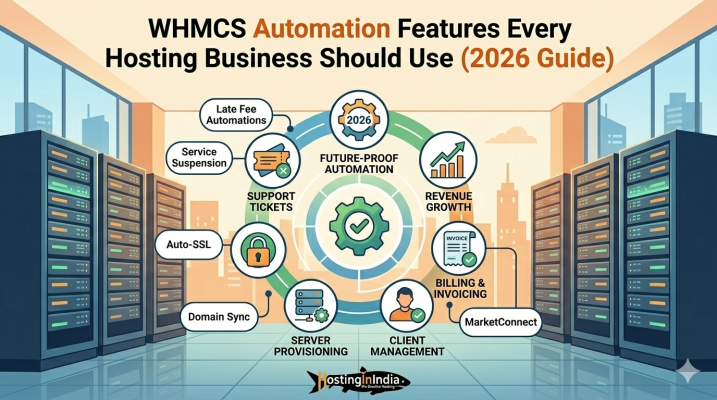
  • WHMCS Automation Features Every Hosting Business Should Use

    WHMCS Automation Features Every Hosting Business Should Use

    This is where WHMCS automation becomes a game-changer.

    WHMCS (Web Host Manager Complete Solution) is one of the most widely used billing and automation platforms in the web hosting industry. It helps hosting providers, reseller hosting businesses, VPS providers, domain registrars, and web agencies automate repetitive tasks and streamline operations.

    In this comprehensive HostingInIndia guide, we’ll explore the most important WHMCS automation features every hosting business should use to save time, improve efficiency, and deliver a better customer experience.


    What is WHMCS Automation?

    WHMCS automation refers to the ability of WHMCS to automatically perform various hosting management tasks without requiring manual intervention.

    Instead of manually creating hosting accounts, generating invoices, sending reminders, suspending overdue accounts, or processing renewals, WHMCS handles these tasks automatically based on predefined rules.

    WHMCS integrates with:

    • cPanel
    • Plesk
    • DirectAdmin
    • Cloud Hosting Platforms
    • VPS Servers
    • Domain Registrars
    • Payment Gateways

    This allows hosting businesses to operate more efficiently while reducing administrative workload.

    Benefits of WHMCS Automation

    Automation is one of the biggest advantages of using WHMCS.

    Key Benefits Include:

    Save Time

    Automated processes eliminate repetitive manual tasks and free up valuable time.

    Reduce Human Errors

    Manual account creation and billing can lead to mistakes. Automation ensures consistency and accuracy.

    Improve Customer Experience

    Customers receive faster service, instant account activation, and timely notifications.

    Scale Your Hosting Business

    Automation allows hosting companies to manage hundreds or thousands of customers without significantly increasing staff.

    Increase Revenue

    Faster provisioning, automated renewals, and improved customer retention help generate more recurring revenue.

    Operate 24/7

    WHMCS works around the clock, even when your team is offline.


    Automatic Account Creation

    One of the most valuable automation features in WHMCS is automatic hosting account provisioning.

    Traditionally, hosting providers had to manually create accounts after receiving payment.

    With WHMCS automation, hosting accounts can be created instantly.


    How Automatic Account Creation Works

    1. Customer places an order.
    2. Customer completes payment.
    3. WHMCS communicates with the hosting server.
    4. Hosting account is automatically created.
    5. Login credentials are emailed to the customer.

    This entire process takes only a few seconds.

    Supported Control Panels

    WHMCS can automatically provision accounts on:

    • cPanel/WHM
    • Plesk
    • DirectAdmin
    • ISPConfig
    • Virtualizor
    • SolusVM

    Benefits of Automatic Account Creation

    • Instant account activation
    • Faster customer onboarding
    • No manual intervention required
    • Improved customer satisfaction
    • Reduced administrative workload


    Invoice Automation

    Billing is one of the most time-consuming aspects of managing a hosting business.

    WHMCS automates the entire invoicing process.

    What WHMCS Invoice Automation Does

    Automatically:

    • Creates invoices
    • Sends invoices to customers
    • Calculates taxes
    • Applies discounts
    • Tracks payment status
    • Generates overdue notices

    Invoice Automation Workflow

    1. Service due date approaches.
    2. WHMCS generates invoice.
    3. Invoice is emailed to customer.
    4. Payment reminder emails are sent automatically.
    5. Account status updates after payment.

    Benefits of Invoice Automation

    • Faster billing process
    • Reduced accounting workload
    • Improved cash flow
    • Fewer missed payments
    • Better customer communication

    Suspension Automation

    Managing overdue accounts manually can be difficult as your customer base grows.

    WHMCS includes automatic suspension functionality.

    How Suspension Automation Works

    When an invoice remains unpaid beyond a specified period:

    1. WHMCS detects overdue payment.
    2. Account suspension command is sent to server.
    3. Hosting service is automatically suspended.
    4. Customer receives suspension notification.
    Benefits of Suspension Automation
    • Enforces payment policies
    • Protects server resources
    • Encourages timely payments
    • Eliminates manual account reviews
    Reactivation Process

    Once payment is received:

    • WHMCS automatically reactivates the hosting account.
    • Service is restored immediately.

    This provides a seamless customer experience.


    Renewal Reminder Automation

    Many customers forget to renew hosting plans, domains, SSL certificates, and other services.

    WHMCS automatically sends renewal reminders before expiration.

    Renewal Notifications Include
    • Hosting renewals
    • Domain renewals
    • SSL certificate renewals
    • VPS renewals
    • Dedicated server renewals
    Reminder Schedule

    Typical reminder intervals include:

    • 30 days before expiry
    • 15 days before expiry
    • 7 days before expiry
    • 1 day before expiry
    Benefits of Renewal Automation
    • Reduces service expirations
    • Improves customer retention
    • Increases recurring revenue
    • Minimizes support requests


    Support Ticket Automation

    Customer support is essential for every hosting business.

    WHMCS includes a built-in support ticket system that can automate several support processes.

    Automated Support Features
    • Ticket creation
    • Ticket assignment
    • Auto-response messages
    • Department routing
    • Escalation management
    • Status notifications
    Example Workflow
    1. Customer submits support request.
    2. WHMCS generates ticket automatically.
    3. Ticket assigned to correct department.
    4. Customer receives confirmation email.
    5. Staff receives notification.
    Benefits of Support Automation
    • Faster response times
    • Better ticket organization
    • Improved customer satisfaction
    • Reduced support workload


    Domain Management Automation

    Managing domains manually becomes increasingly difficult as your business grows.

    WHMCS automates domain management through registrar integrations.

    Automated Domain Functions
    • Domain registration
    • Domain transfers
    • Domain renewals
    • WHOIS updates
    • DNS management
    Supported Registrars

    WHMCS supports popular registrars including:

    • ResellerClub
    • OpenSRS
    • Enom
    • Namecheap
    • LogicBoxes
    Benefits of Domain Automation
    • Instant domain registration
    • Faster domain transfers
    • Reduced manual work
    • Better customer experience


    Payment Automation

    WHMCS supports a wide range of payment gateways and automates payment processing.

    Popular Payment Gateways
    • PayPal
    • Stripe
    • Razorpay
    • Authorize.Net
    • 2Checkout
    Payment Automation Features
    • Automatic payment processing
    • Recurring billing
    • Payment confirmations
    • Failed payment notifications
    • Transaction tracking
    Benefits of Payment Automation
    • Faster transactions
    • Improved cash flow
    • Reduced manual processing
    • Better customer convenience

    How Automation Saves Time

    The biggest advantage of WHMCS automation is time savings.

    Without automation, hosting providers must manually:

    • Create accounts
    • Generate invoices
    • Process payments
    • Manage renewals
    • Suspend accounts
    • Handle domain management

    As customer numbers increase, these tasks become overwhelming.


    Example Comparison

    Without WHMCS Automation

    100 customers may require:

    • 20+ hours per week on administration
    • Manual invoice tracking
    • Manual account creation
    • Manual renewal management
    With WHMCS Automation

    The same 100 customers can be managed with:

    • Minimal administrative effort
    • Automated billing
    • Instant account provisioning
    • Automatic renewals
    • Automated support workflows


    Business Growth Benefits

    Automation allows businesses to:

    • Scale faster
    • Serve more customers
    • Reduce staffing costs
    • Improve customer satisfaction
    • Focus on marketing and growth


    Why Hosting Companies Depend on WHMCS

    Today, thousands of hosting providers rely on WHMCS because it combines:

    • Billing
    • Hosting automation
    • Domain management
    • Customer support
    • Payment processing

    Into a single platform.

    This eliminates the need for multiple software solutions and creates a more streamlined workflow.


    HostingInIndia WHMCS-Friendly Hosting Solutions

    At HostingInIndia, we provide hosting solutions designed specifically for WHMCS users, resellers, and hosting businesses.

    Our Hosting Features Include
    • WHMCS Compatible Hosting
    • cPanel & WHM Integration
    • Reseller Hosting Solutions
    • VPS Hosting
    • NVMe SSD Storage
    • Free SSL Certificates
    • Daily Backups
    • High Uptime Guarantee
    • Secure Infrastructure
    • 24/7 Technical Support

    Whether you’re launching a reseller hosting business or managing hundreds of clients, HostingInIndia provides the performance and reliability needed to maximize WHMCS automation.


    Final Thoughts

    WHMCS automation is essential for modern hosting businesses. It eliminates repetitive administrative tasks, improves customer satisfaction, and allows businesses to scale efficiently.

    The most valuable WHMCS automation features include:

    1. Automatic Account Creation
    2. Invoice Automation
    3. Suspension Automation
    4. Renewal Reminder Automation
    5. Support Ticket Automation
    6. Domain Management Automation
    7. Payment Automation

    By leveraging these features, hosting providers can save countless hours while improving operational efficiency and profitability.

    If you’re looking for reliable hosting solutions optimised for WHMCS automation, HostingInIndia offers the perfect platform to help your hosting business grow.

  • Digital Marketing for the “Search-First” Era: Integrating SEO with Your Hosting Strategy

    Digital Marketing for the “Search-First” Era: Integrating SEO with Your Hosting Strategy

    Digital marketing doesn’t start with clever ad copy or a beautiful Instagram post; it starts with your website’s infrastructure. If your foundation is weak, even the most expensive marketing campaign will fail to deliver a return on investment (ROI).

    Here is how your hosting strategy and SEO are now two sides of the same coin.

    Core Web Vitals: The “Health Report” Google Actually Cares About

    Google no longer just looks at what you say; it looks at how your site behaves. They use a set of metrics called Core Web Vitals to judge your site’s user experience. Your hosting provider is the single biggest factor in these scores.

    • LCP (Largest Contentful Paint): This measures how fast your main content (like a hero image or headline) appears. If your server is slow to respond, your LCP score tanks. Ideally, this should happen in under 2.5 seconds.
    • CLS (Cumulative Layout Shift): Have you ever tried to click a button, but the page jumped, and you clicked an ad instead? That’s poor CLS. While often a coding issue, slow-loading server-side elements (like fonts or CSS) can cause these frustrating “jumps.”
    • INP (Interaction to Next Paint): New for 2026, this replaces FID. it measures how quickly your site reacts when a user clicks a link or button. A high-performance server ensures these interactions feel “instant.”

    Landing Page Optimization: The Secret to Cheap Google Ads

    Most people think the only way to rank higher in Google Ads (PPC) is to bid more money. That’s a myth. Google uses a Quality Score to determine your ad rank.

    A major component of that score is the Landing Page Experience. If you send a visitor to a page that takes 5 seconds to load because of a cheap server, Google will penalize you. You will end up paying more per click than a competitor who has a faster site. High-performance hosting from HostingInIndia acts as a “multiplier” for your ad budget, lowering your costs while improving your position.

    Security as Marketing: The “Safe Browsing” Shield

    Security isn’t just about stopping hackers; it’s a powerful marketing tool.

    • The SSL Trust Signal: That little padlock icon in the browser bar is a psychological green light. Without it, browsers like Chrome show a “Not Secure” warning.
    • Safe Browsing Status: If your hosting is insecure and your site gets flagged for malware, Google will block users from entering with a terrifying red screen.

    At HostingInIndia, we manage your SSL certificates and Safe Browsing status as part of our core service. This ensures that when a customer clicks your link, they see a brand they can trust—improving your click-through rates (CTR) and keeping your reputation intact.

    Strategy: The “Double-Threat” Online Presence

    The most successful Indian businesses in 2026 don’t treat SEO and Hosting as separate tasks. They combine them into a single strategy:

    1. Fast Infrastructure: Use NVMe-based servers and local Indian data centers to nail your Core Web Vitals.
    2. Strategic SEO: Layer professional keyword targeting and content strategy on top of that fast foundation.

    When your server is fast, your SEO efforts work twice as hard. Google’s “crawlers” can index more of your pages in less time, and users stay on your site longer, sending “quality signals” back to search engines.


    Conclusion: A Holistic Approach to Digital Growth

    Digital growth in the “Search-First” era requires a holistic view. You can’t build a high-performance race car (your marketing) on a bicycle frame (poor hosting).

    By integrating HostingInIndia’s robust infrastructure with our digital marketing expertise, you aren’t just “getting a website online”—you’re building a conversion engine that is fast, secure, and ready to lead the search results.

    Is your hosting holding back your marketing? Get a free SEO & Speed Audit from our experts and see the difference a professional foundation makes.

  • The Modern Brand Identity: Why Your Business Email is More Important Than Your Social Media

    The Modern Brand Identity: Why Your Business Email is More Important Than Your Social Media

    In 2026, a sleek social media profile won’t save you if your primary point of contact is a generic @gmail.com or @yahoo.com address. In fact, ignoring your email identity might be the silent killer of your conversion rates.

    The “Trust Gap”: The Cost of a Free Address

    Imagine you are looking for a reliable SEO expert or a website designer. You receive two quotes: one from hassan.designs@gmail.com and another from contact@hassannazir.in.

    Which one feels like an established business, and which one feels like a side hobby?

    Studies show a massive “Trust Gap” in digital commerce: customers are 60% less likely to buy or share sensitive information with a business using a free email provider. A generic address suggests your business might be temporary, unverified, or—worse—unprofessional. In a market like India, where trust is the foundation of every transaction, that free address is costing you more than a paid subscription ever would.

    Professionalism vs. Convenience: Perception is Reality

    We all love the convenience of free tools, but a custom domain email (sales@yourbrand.in) changes the entire perception of your business.

    • Brand Recall: Every time you send an email, you are reinforcing your website URL.
    • Authority: It gives your team members a unified identity.
    • First Impressions: It tells the recipient, “I have invested in my infrastructure. I am here for the long term.”

    Moving from a personal account to a professional one is the quickest way to upgrade your brand identity without redesigning your entire website.

    Security Beyond the Inbox

    Professional email isn’t just about the name on the door; it’s about the locks on the safe. Free email services are often the primary targets for mass phishing and spam because they lack the granular security controls of a business-grade suite.

    When you use professional services like Titan, Google Workspace, or Microsoft 365 through HostingInIndia, you get:

    • Advanced Malware Filtering: Stopping threats before they reach your employee’s inbox.
    • Enterprise-Grade Encryption: Ensuring your client’s data and your private contracts remain private.
    • Reliable Backups: Unlike free accounts, professional suites offer recovery options if data is accidentally deleted.

    The Collaboration Suite: More Than Just “Sending Mail”

    A professional email address is often your “ID card” for a much larger ecosystem of productivity. When you secure a business email through HostingInIndia, you aren’t just getting an inbox; you’re getting a collaboration engine.

    • Google Workspace: Seamlessly integrate with Drive, Meet, and Docs using your custom domain.
    • Microsoft 365: Access the gold standard of Office apps (Word, Excel, Teams) linked directly to your professional identity.
    • Domain Integration: Your calendar, files, and video calls all reflect your brand, creating a polished experience for your clients.


    Conclusion: Small Investment, High ROI

    Your professional identity is your most valuable digital asset. While a social media algorithm can change overnight, your domain-based email is an asset you own and control.

    Securing a professional email is a small monthly investment that yields a high ROI through increased trust, better security, and a more cohesive brand. Don’t let a “free” address hold back your business growth in 2026.

    Ready to bridge the trust gap? Check out our Professional Email Plans and claim your brand’s digital identity today.

  • What is Website Downtime & How to Prevent It

    What is Website Downtime & How to Prevent It

    In today’s competitive online world, even a few minutes of downtime can result in lost opportunities. That’s why understanding website downtime and learning how to prevent it is extremely important for every website owner.

    In this complete guide, we’ll explain:

    • What is website downtime
    • Common causes of downtime
    • How downtime affects SEO and revenue
    • Ways to monitor and prevent downtime
    • Why reliable hosting matters

    What is Website Downtime?

    Website downtime refers to the period when your website becomes unavailable or inaccessible to users.

    During downtime:

    • Visitors cannot open your website
    • Web pages may display errors
    • Online services stop functioning

    In simple words, downtime means your website is “offline.”

    Types of Website Downtime

    Website downtime can occur in different ways depending on the issue.

    1. Planned Downtime

    This happens intentionally during:

    • Server maintenance
    • Software updates
    • Security upgrades

    Planned downtime is usually short and controlled.

    2. Unplanned Downtime

    This occurs unexpectedly due to:

    • Server crashes
    • Cyberattacks
    • Hosting failures
    • Technical errors

    Unplanned downtime is more dangerous because it directly impacts visitors and revenue.

    Common Causes of Website Downtime

    There are many reasons why websites go offline.

    Server Failure

    Poor-quality hosting servers may crash due to hardware or software problems.

    Traffic Overload

    Sudden traffic spikes can overload hosting resources and crash websites.

    Cyberattacks

    DDoS attacks, malware, and hacking attempts can make websites inaccessible.

    Coding or Plugin Errors

    Faulty plugins, themes, or coding updates may break website functionality.

    Expired Domain or SSL

    Expired domain names or SSL certificates can prevent websites from loading properly.

    Poor Hosting Infrastructure

    Cheap hosting providers often use overcrowded servers with limited resources.


    How Website Downtime Affects SEO & Revenue

    Downtime is not just a technical issue — it directly impacts business growth.

    SEO Ranking Drops

    Search engines like Google prefer reliable websites.

    Frequent downtime can:

    • Reduce crawlability
    • Affect indexing
    • Lower rankings in search results
    Loss of Visitors

    If users cannot access your website, they may leave and never return.

    Revenue Loss

    For eCommerce websites, downtime means:

    • Lost sales
    • Missed leads
    • Reduced conversions
    Damage to Brand Reputation

    Visitors expect websites to work 24/7. Frequent downtime creates a negative impression and reduces trust.

    How to Monitor Website Downtime

    Monitoring helps detect issues before they become serious problems.

    Use Uptime Monitoring Tools

    Popular tools include:

    • UptimeRobot
    • Pingdom
    • GTmetrix
    • Better Uptime

    These tools send alerts when your website goes offline.

    Monitor Server Performance

    Track:

    • CPU usage
    • RAM usage
    • Traffic spikes
    • Disk space

    Regular monitoring helps identify server issues early.

    Check Website Speed Regularly

    Slow websites often indicate performance problems that may lead to downtime.


    How to Prevent Website Downtime

    Preventing downtime requires a combination of reliable hosting, monitoring, and website optimization.

    Choose Reliable Hosting

    Your hosting provider plays the biggest role in website uptime.

    Reliable hosting includes:

    • High-performance servers
    • Uptime guarantee
    • Backup systems
    • Security protection

    Upgrade Hosting Resources

    As your website grows, upgrade your hosting plan to handle higher traffic.

    Cloud Hosting or VPS Hosting is ideal for scaling websites.

    Keep Software Updated

    Always update:

    • CMS platforms
    • Themes
    • Plugins
    • Security patches

    Outdated software increases the risk of crashes and security issues.


    Take Regular Backups

    Automatic backups help restore websites quickly during emergencies.

    Use Security Protection

    Protect your website with:

    • SSL certificates
    • Firewall protection
    • Malware scanning
    • DDoS protection
    Use CDN Services

    A CDN improves website stability and reduces server load by distributing content globally.

    Why Reliable Hosting is Important

    Many downtime problems happen because of poor hosting infrastructure.

    A reliable hosting provider offers:

    • Stable servers
    • Better uptime
    • Fast loading speeds
    • Security protection
    • Technical support

    Choosing quality hosting is one of the best investments for long-term website success.

    HostingInIndia Uptime Benefits

    At HostingInIndia, we focus on performance, reliability, and security to help businesses stay online without interruptions.

    🚀 Our Hosting Benefits Include:
    • 99.9% uptime guarantee
    • High-speed hosting infrastructure
    • Advanced security protection
    • Backup solutions
    • Scalable hosting plans
    • 24/7 expert support
    • Fast server response time

    Whether you run a business website, blog, or eCommerce store, HostingInIndia provides reliable hosting solutions designed for maximum uptime.

    Final Thoughts

    Website downtime can seriously affect your SEO rankings, traffic, sales, and customer trust.

    The good news is that most downtime issues can be prevented with:

    • Reliable hosting
    • Proper monitoring
    • Security protection
    • Regular maintenance

    If you want your website to stay fast, secure, and always available, choosing the right hosting provider is essential.

  • Top 10 Common Web Hosting Mistakes That Kill Your Website Performance

    Top 10 Common Web Hosting Mistakes That Kill Your Website Performance

    Many website owners unknowingly make critical web hosting mistakes that affect their site’s speed and reliability. The good news? Most of these problems are avoidable.

    In this guide, we’ll cover the Top 10 common web hosting mistakes and how you can fix them to improve your website performance in 2026.

    Why Website Performance Matters

    Website speed and uptime directly affect:

    • User experience
    • Search engine rankings
    • Conversion rates
    • Brand trust
    • Revenue generation

    Studies show that visitors leave websites that take more than a few seconds to load. Search engines like Google also prioritize fast and secure websites in search results.

    That’s why choosing the right hosting setup is extremely important.

    Mistake 1: Choosing Cheap Hosting Only Based on Price

    One of the biggest mistakes beginners make is selecting the cheapest hosting plan available.

    Cheap hosting often comes with:

    • Slow servers
    • Overcrowded resources
    • Frequent downtime
    • Weak security
    • Limited support

    While low-cost hosting may save money initially, it can hurt your business in the long run.

    Fix:

    Choose reliable hosting that balances affordability with performance and support.

    👉 HostingInIndia offers affordable hosting plans with high-speed infrastructure, security, and 24/7 support.

    Mistake 2: Ignoring Uptime Guarantee

    If your website goes offline frequently, visitors and search engines lose trust in your site.

    Low uptime can result in:

    • Lost sales
    • Lower SEO rankings
    • Poor customer experience

    Fix:

    Always choose hosting providers that offer at least 99.9% uptime guarantee.

    Reliable uptime ensures your website stays accessible 24/7.

    Mistake 3: Not Taking Regular Backups

    Many website owners realise the importance of backups only after losing important data.

    Data loss can happen due to:

    • Hacking
    • Server failure
    • Plugin issues
    • Human errors

    Fix:

    Use automatic daily or weekly backups.

    HostingInIndia provides backup solutions to keep your website data safe and recoverable anytime.

    Mistake 4: Not Using an SSL Certificate

    An SSL certificate encrypts the connection between your website and visitors.

    Without SSL:

    • Browsers mark your website as “Not Secure”
    • SEO rankings can drop
    • Visitors may leave your site

    Fix:

    Always enable SSL certificates on your website.

    👉 HostingInIndia offers free SSL certificates with hosting plans for enhanced security and SEO benefits.

    Mistake 5: Choosing the Wrong Server Location

    Server location affects website loading speed.

    If your server is far from your target audience, pages may load more slowly.

    Fix:

    Choose hosting servers located close to your audience.

    For Indian businesses, hosting in India or nearby regions improves website speed and user experience.

    Mistake 6: Overloading the Server

    Hosting too many websites on a low-resource hosting plan can slow everything down.

    Overloaded servers cause:

    • Slow website speed
    • Crashes during traffic spikes
    • Poor performance

    Fix:

    Upgrade hosting plans as your website grows.

    Cloud hosting or VPS hosting is ideal for high-traffic websites.

    Mistake 7: Not Using a CDN

    A CDN (Content Delivery Network) stores copies of your website on multiple servers worldwide.

    Without a CDN:

    • Global visitors may experience slow loading
    • Website speed decreases internationally

    Fix:

    Use a CDN like Cloudflare to improve global performance and security.

    HostingInIndia supports CDN integration for faster website delivery.

    Mistake 8: Ignoring Website Security

    Cyber threats are increasing every year.

    Weak security can lead to:

    • Malware attacks
    • Data theft
    • Website downtime
    • SEO penalties

    Fix:

    Use:

    • Firewall protection
    • Malware scanning
    • SSL certificates
    • Strong passwords
    • Regular updates

    Secure hosting plays a major role in website protection.

    Mistake 9: Having No Scaling Plan

    Many websites outgrow their hosting resources over time.

    Without scalability:

    • Websites slow down during traffic spikes
    • Performance issues increase
    • User experience suffers

    Fix:

    Choose hosting providers that allow easy upgrades.

    HostingInIndia offers scalable hosting solutions, including:

    • Shared Hosting
    • Cloud Hosting
    • VPS Hosting
    • Dedicated Servers

    Mistake 10: Choosing Hosting With Poor Support

    Technical problems can happen anytime.

    Poor support means:

    • Long downtime
    • Delayed issue resolution
    • Frustration for website owners

    Fix:

    Always choose hosting providers with reliable 24/7 support.

    Expert technical assistance can save your website during emergencies.

    How HostingInIndia Helps Avoid These Hosting Mistakes

    At HostingInIndia, we focus on:

    • Fast hosting performance
    • Strong website security
    • Scalable hosting infrastructure
    • Reliable uptime
    • 24/7 expert support
    • Backup protection
    • Free SSL certificates

    Our hosting solutions are designed to help businesses grow without performance issues.


    Final Thoughts

    Your hosting provider directly impacts your website’s speed, security, uptime, and SEO performance.

    Avoiding these common hosting mistakes can:

    • Improve website speed
    • Boost Google rankings
    • Increase conversions
    • Improve visitor trust

    Investing in reliable hosting today can save you from major problems tomorrow.