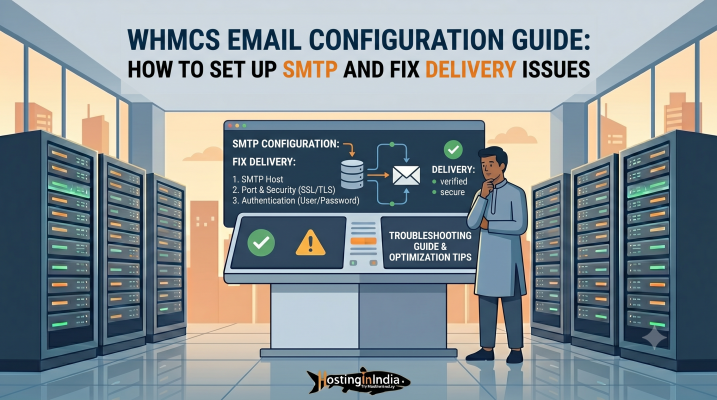
Unfortunately, email delivery issues are incredibly common in WHMCS. If your system emails end up in your customers’ spam folders—or worse, don’t get delivered at all—it can damage your credibility and cause immediate support bottlenecks.
In this comprehensive guide, we will walk you through setting up a professional SMTP configuration in WHMCS, ensuring your messages hit the inbox every single time.
Why WHMCS Email Setup Matters
By default, WHMCS is a powerhouse of automation. It handles:
- Invoice generation and payment receipts.
- Automated server provisioning details.
- Password resets and account security alerts.
- Support ticket updates.
If your customers miss an invoice notification, your cash flow suffers. If they don’t receive their welcome email, they can’t access their services, resulting in frustrated clients flooding your support desk. A reliable email setup isn’t a luxury; it’s a core operational requirement.
SMTP vs. PHP Mail: Why Default Settings Fail
When you first install WHMCS, it often defaults to using the built-in PHP Mail script (mail()) from your server infrastructure. While convenient, relying on PHP mail is a major risk for growing businesses:
- No Authentication: PHP mail sends messages directly from the server without robust sender verification. Spammers love this, which means major providers like Gmail, Outlook, and Yahoo look at PHP mail with extreme suspicion.
- Shared IP Reputation: If you are running on a shared server and a neighbouring site sends spam, the server’s primary IP gets blacklisted. Consequently, your legitimate transactional invoices get blocked too.
- High Spam Rates: PHP mail routinely lands straight in the spam or promo folder.
SMTP (Simple Mail Transfer Protocol), on the other hand, routes your emails through a dedicated, authenticated mail server. It requires a username and password, proving to receiving mail networks that the email is genuinely authorized by your domain name.
Best SMTP Providers for WHMCS
To get the best deliverability, you should pair WHMCS with a professional email provider. Excellent options include:
- Google Workspace / Gmail: Highly reliable, great if your business already operates on Google’s ecosystem.
- Zoho Mail: An affordable, feature-rich alternative widely popular among Indian SMBs.
- Titan Mail: Optimized explicitly for business storage and seamless domain integration.
- Premium Dedicated Relay Services: Mailgun, SendGrid, or Amazon SES (ideal for high-volume bulk invoicing).
Step-by-Step: Configure SMTP in WHMCS
Ready to make the switch? Follow these steps to configure your custom mail settings inside your dashboard:
- Log in to your WHMCS Admin Area.
- Navigate to Configuration (the wrench icon) >> System Settings >> General Settings.
- Click on the Mail tab.
- Locate the Mail Type dropdown menu and change it from PHP Mail to SMTP.
- Fill in your specific mail server details (obtained from your email provider):
- SMTP Host: (e.g., mail.yourdomain.com or provider host address).
- SMTP Port: Use 465 for SSL connections or 587 for TLS connections.
- SMTP SSL Type: Select SSL or TLS based on your port selection.
- SMTP Username: Enter the full email address you wish to send from (e.g., billing@yourdomain.com).
- SMTP Password: Enter the corresponding password (or an App Password if using 2FA).
- Click Save Changes at the bottom of the page.
Specific Provider Setups
1. Gmail / Google Workspace SMTP Setup
Because Google enforces strict security policies, using your standard account password often results in an authentication failure.
- SMTP Host: smtp.gmail.com
- SMTP Port: 465 (with SSL) or 587 (with TLS)
- Crucial Step: You must enable Two-Factor Authentication (2FA) inside your Google Account security panel. Once enabled, generate an App Password specifically for WHMCS, and paste that 16-character code into your WHMCS SMTP Password field instead of your regular password.
2. Zoho SMTP Setup
Zoho is highly secure and works perfectly with automated invoice layouts.
- SMTP Host: smtp.zoho.in (if your account is registered in India) or smtp.zoho.com (global).
- SMTP Port: 465
- SMTP SSL Type: SSL
- Note: Ensure that the “From” address configured in your WHMCS General Settings exactly matches your authorized Zoho account username.
Troubleshooting Common Email Delivery Issues
If you save your settings and encounter errors, look into these common culprits:
- Authentication Errors: Double-check your username and password string. If using Gmail or Zoho with 2FA active, a standard login password will fail; you must use an App Password.
- Port Blocks: Many cloud VPS providers block outbound traffic on port 25 by default to prevent spam. Ensure your configuration utilizes secure ports like 465 or 587.
- Firewall Restrictions: Ensure your hosting server’s firewall allows outbound requests to your remote mail server IPs.
Advanced Strategies to Improve WHMCS Email Deliverability
Authentication doesn’t end at the WHMCS dashboard. To make sure your domain has a pristine reputation in the eyes of Google and Microsoft, you must configure your domain’s DNS zone correctly.
- SPF (Sender Policy Framework): A text record added to your DNS settings that explicitly lists which mail servers are permitted to send emails on behalf of your domain.
- DKIM (DomainKeys Identified Mail): Adds a cryptographic digital signature to your outgoing mail headers, proving the message wasn’t altered in transit.
- DMARC (Domain-based Message Authentication, Reporting, and Conformance): A policy rule telling receiving servers exactly what to do (e.g., quarantine or reject) if an email fails your SPF or DKIM checks.
Critical Security Tips for Your Mail Infrastructure
- Never Use Root Email Accounts: Do not use primary administrative or personal email profiles for automated software output. Create separate routing groups like no-reply@, billing@, or support@.
- Enforce Strong Password Policies: Ensure your SMTP mailbox has a complex, randomized password script to avoid brute-force cracking attempts.
- Regularly Audit Log History: Check your WHMCS Activity Log (Billing >> Logs or System >> Activity Log) weekly to verify that automated cron sequences aren’t tripping error flags.
Conclusion
Transitioning your WHMCS system away from unreliable PHP scripts to an authenticated SMTP engine keeps your hosting platform running efficiently. By protecting your communication channels, you protect your revenue streams.
At HostingInIndia, our premium Linux VPS and Reseller architectures give you full control over your execution environment. If you need any assistance getting your server firewalls aligned with your cloud mail networks, reach out to our technical support team—we are here to help you breathe hosting!