Mastering the WordPress Admin Dashboard: Your Digital Command Center

Mastering the WordPress Admin Dashboard: Your Digital Command Center

So, you’ve just set up your WordPress site with HostingInIndia. Congratulations! You’re now part of the global community that powers over 40% of the web. But as you stare at the screen after logging in, you might be wondering: “What do all these buttons do?”
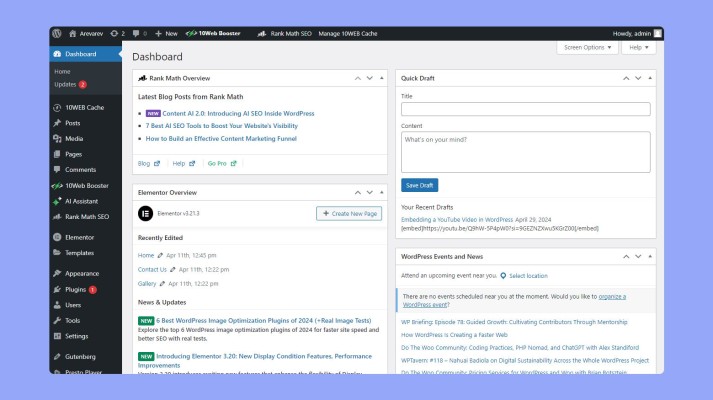
The WordPress Admin Dashboard is the “cockpit” of your website. It’s where you’ll write your first viral post, swap out themes, and manage your growing community. Think of it as the brain of your site—everything you want the world to see on the front end starts right here.

In this guide, we’ll take a tour of the dashboard so you can navigate it like a pro.

How to Access Your Dashboard

To get into your control panel, simply add /wp-admin to the end of your website URL.

Example: www.yourbrand.in/wp-admin

Once you enter your credentials, you’ll be greeted by the dashboard home.

1. The Dashboard “At a Glance”

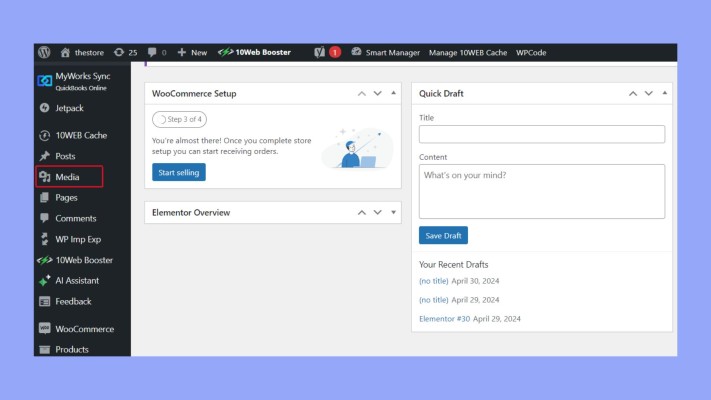
When you first log in, the Home screen gives you a high-level overview of your site’s health and activity.

  • At a Glance Widget: This shows you exactly how many posts, pages, and comments you have. It also tells you which version of WordPress and which theme you are currently running.
  • Activity: This section lists your most recent posts and the latest comments from your readers.
  • Quick Draft: Have a sudden idea for a blog post? Type it here quickly to save it as a draft for later.

WordPress Events and News: Stay connected with the community. You might find a local WordCamp happening in cities like Bengaluru, Mumbai, or Pune!


2. Managing Your Content: Posts vs. Pages

One of the most common questions we get at HostingInIndia is: “What’s the difference between a Post and a Page?”

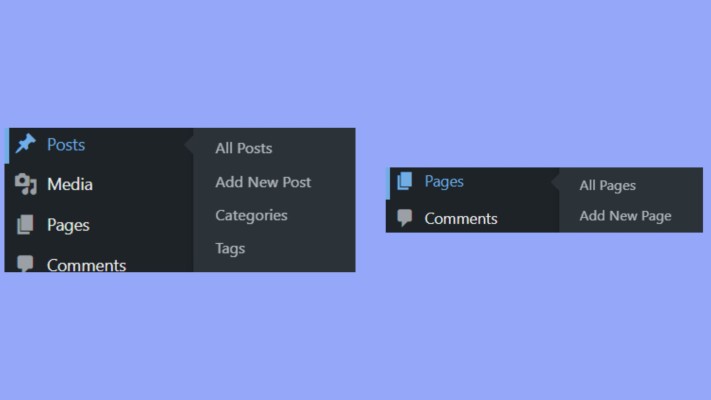
  • Posts (The News): These are time-sensitive entries. If you’re running a blog or a news site, you’ll use Posts. They appear in reverse chronological order (newest first).
    • Navigation: Posts > Add New.
  • Pages (The Foundation): These are static. Use Pages for content that doesn’t change often, like your “About Us,” “Contact,” or “Privacy Policy.”
    • Navigation: Pages > Add New.

Organizing with Categories and Tags

To keep your site from becoming a mess, use Categories for broad topics (e.g., “Web Hosting”) and Tags for specific details (e.g., “Cloud VPS”). This helps your visitors find what they need in seconds.


3. The Media Library

This is your digital warehouse. Every image, video, or PDF you upload is stored here. You can upload files directly via Media > Add New or add them while you’re writing a post.

Pro-Tip: Always compress your images before uploading to keep your site speed blazing fast on Indian mobile networks!


4. Customizing Your Look: Themes and Plugins

This is where the magic happens. You can change your site’s entire personality without touching a single line of code.

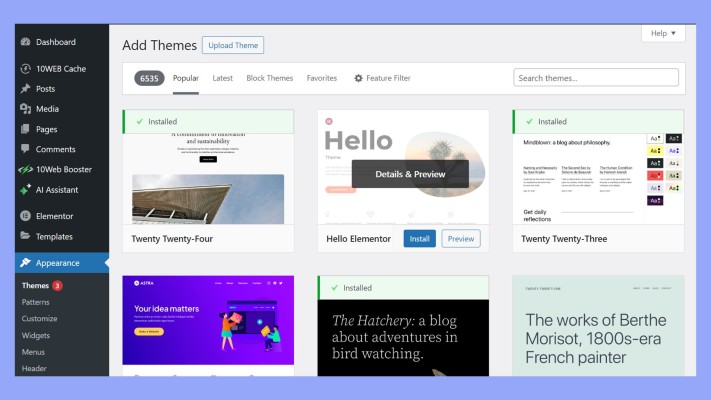
  • Themes: Go to Appearance > Themes to pick a design. Use the Customizer (Appearance > Customize) to change colors, fonts, and site identity in real-time.
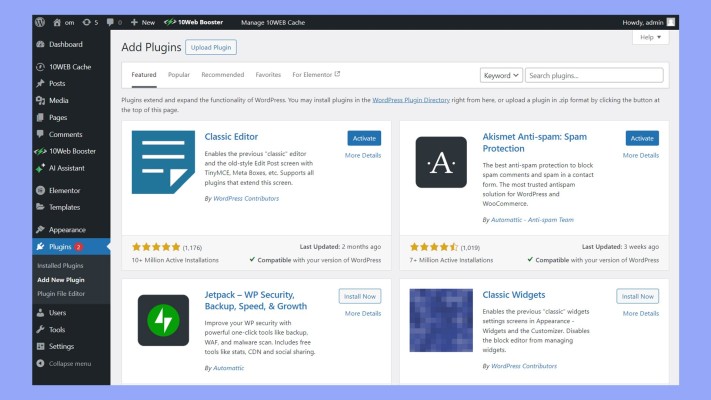
  • Plugins: These are like “apps” for your website. Want an e-commerce store? Install WooCommerce. Want to stop spam? Install Akismet.
    • Navigation: Plugins > Add New.


5. Interacting with Your Users

As your site grows, you’ll likely have more people involved. WordPress makes it easy to manage them under the Users tab.

User Roles at a Glance

Role

Capability

Administrator

Full control over the entire site.

Editor

Can publish and manage anyone’s posts.

Author

Can publish and manage their own posts only.

Contributor

Can write posts but needs an Admin to publish them.

Subscriber

Can only manage their own profile.


6. Advanced Security: Limiting Access

Since the dashboard is the “keys to the kingdom,” security is vital. At HostingInIndia, we recommend being very selective about who gets Administrator access.

If you run a membership site and want to prevent non-admins from even seeing the dashboard, you can add a small snippet of code to your functions.php file or use a plugin like WP Adminify to hide specific menu items.


Summary

Mastering the WordPress dashboard is the first step to online success. It might look overwhelming at first, but once you understand the layout—from the Media Library to User Roles—you’ll find it’s an incredibly intuitive tool for building your digital brand.

HostingInIndia – Trusted Hosting Partner
Privacy Overview

This website uses cookies so that we can provide you with the best user experience possible. Cookie information is stored in your browser and performs functions such as recognising you when you return to our website and helping our team to understand which sections of the website you find most interesting and useful.