
Migrate cPanel Account from cPanel to CWP

Migrate cPanel Account from cPanel to CWP

CentOS Web Panel (CWP) is a free, open-source hosting management solution that provides a powerful alternative for managing your web environment. While HostingInIndia does not offer direct technical support for CWP, you have the flexibility to install it directly onto your Linux VPS.
Step 1: Generate and Transfer the cPanel Backup

The first stage happens within your old cPanel interface. Instead of downloading a massive file to your local computer and re-uploading it, we will move it directly from server to server for maximum speed.

  1. Access cPanel: Log in to your existing cPanel account.

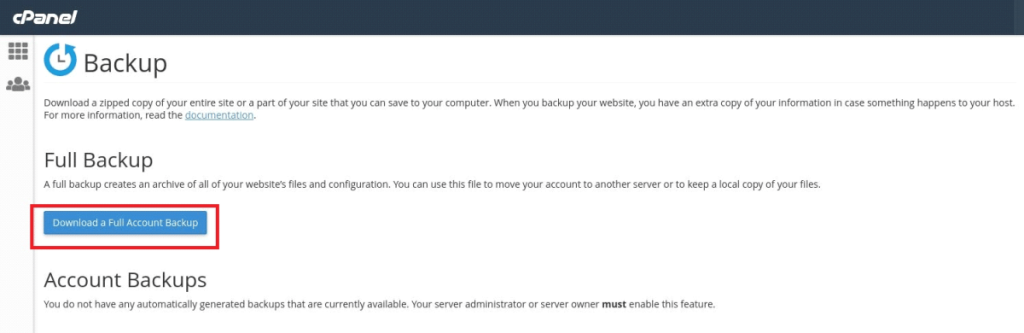
  2. Navigate to Backups: Go to Files >> Backup and select Download a Full Account Backup.

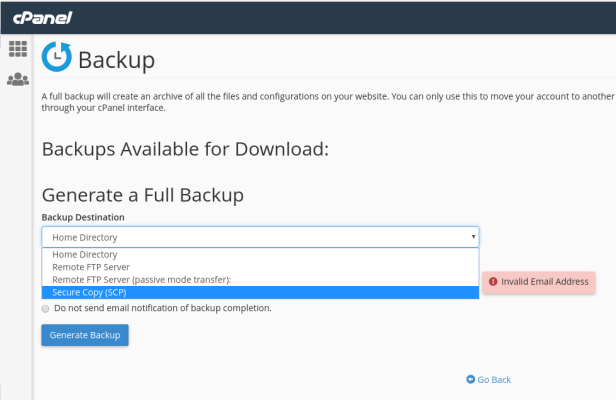
3. Set the Destination: Under “Backup Destination,” select Remote FTP Server (SCP). This allows the backup to move directly to your new HostingInIndia VPS.

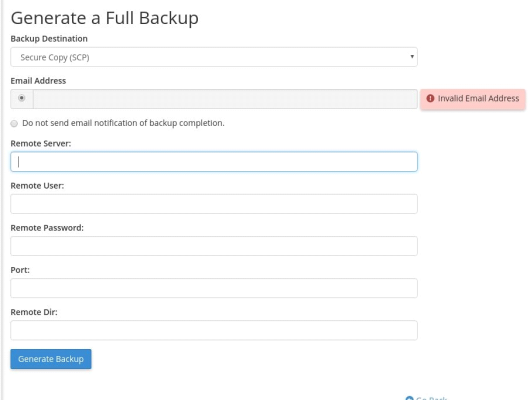
4. Enter CWP Server Details: Fill in the remote server information as follows:

    • Remote Server: Enter your new CWP server IP address.

    • Remote User: root

    • Remote Password: Enter the root password for your CWP server.

    • Port: Enter your CWP server’s SSH port number (default is usually 22).

5. Generate: Click on Generate Backup.

Once the process is finished, the backup file will appear in the /root directory of your CWP server. It will typically look like this: backup-12.28.2018_05-31-51_user.tar.gz.

Step 2: Prepare the File for Migration

CWP looks for a specific naming convention to recognize a cPanel migration file. You will need to rename and move the file manually.

  1. Rename the File: The backup needs to be renamed to a “cpmove” format. For example:

    • Original: backup-12.28.2018_05-31-51_user.tar.gz

    • New Name: cpmove-user.tar.gz

  2. Move to the Home Directory: Log in to your HostingInIndia VPS via SSH as the root user. Move the file from the root folder to the /home directory using the following command: mv /root/backup-12.28.2018_05-31-51_test_user.tar.gz /home/cpmove-test_user.tar.gz

Step 3: Initiate the Recovery in CWP

Now that the file is in the correct place and has the correct name, CWP can take over the heavy lifting.

  1. Login to CWP: Open your CentOS Web Panel dashboard.

  2. Find Migration Tool: Navigate to User Accounts >> cPanel Migration.

  3. Import: Select your backup file from the list and click on Import.

The system will now begin extracting your files, databases, and configurations. Once the process is finished, you will see a confirmation message: “Migration has been successfully completed.”


Conclusion

By following these steps, you can transition your website to a more flexible VPS environment while maintaining all your hard work. HostingInIndia provides the high-speed infrastructure; you provide the vision.

If you encounter any issues during your setup or require further assistance with our hosting services, please do not hesitate to reach out to our support department. We are here to help you breathe easier with your hosting!

HostingInIndia – Trusted Hosting Partner
Privacy Overview

This website uses cookies so that we can provide you with the best user experience possible. Cookie information is stored in your browser and performs functions such as recognising you when you return to our website and helping our team to understand which sections of the website you find most interesting and useful.